· 6 years ago · Oct 27, 2019, 01:34 PM
1---
2title: How to use Nexmo verify API and Message API in React native
3published: true
4date: 2019-10-27 09:59:57 UTC
5tags: React native,nexmo api,otp,react native verify
6canonical_url: https://kriss.io/how-to-use-nexmo-verify-api-and-message-api-in-react-native/
7cover_image: https://kriss.io/wp-content/uploads/2019/10/Nexmo-api.png
8---
9
10In this tutorial, we are going to implement the verification process in our React Native application. For the verification process, we are going to use Nexmo to verify API and message API with React Native. Nexmo is a platform that provides full-service verification service. They help to deploy a scalable verification solution without compromising the user experience. this tutorial inspired by [React Native Social Chat App Template](https://www.instamobile.io/app-templates/react-native-chat-app-template/?ref=4094&campaign=dev.to)
11
12Currently, the user can register and use the app instantly. Now, we are going to add a verification page after the user successfully registers. First, we are going to create a Nexmp app for verification and message API. Then, we are going to create a verification server by using codesandbox. Finally, we will configure these verification APIs and server to our React Native app logic and test the result.
13
14## Prepare the Nexmo App
15
16First, we are going to create a Nexmo app and configure it. To create a Nexmo app we need to go to the [Nexmo developer dashboard](https://dashboard.nexmo.com/sign-in) and log in. If we don’t have an account then we need to register into the Nexmo platform which is pretty easy. We can see the Nexmo login interface below through which we can register as well as log in.
17
18
19
20After successful registration and login into the Nexmo platform, we will be redirected to Nexmo dashboard as shown in the screenshot below:
21
22
23
24In the drawer menu of the dashboard, we can see the “Messages and Dispatch” option which can be collapsed into the additional sub-menu options.
25
26Among the options, we need to click on ‘Create an application’ option in order to create a Nexmo app. Then, we need to provide an application name i.e. ‘nexmo test app’ here. After that, we can see the ‘Generate public/private key pair’ button at the bottom in the screenshot below. We need to click on it to generate a key that provides us with a private key in order to use it for connecting to the Nexmo server. Then, we need to save that private key into our local directory in order to use later while creating our server. The key file here is named as `jwtRS256.key`.
27
28
29
30
31
32### Configurations of Nexmo app
33
34Now, we need to fill webhook URL to receive status from Nexmo server as shown in the screenshot below:
35
36
37
38Next, we need to click on ‘Create application’ on the bottom right-hand side which will provide us with a Nexmo app named ‘nexmo test app’ as shown in the code snippet below:
39
40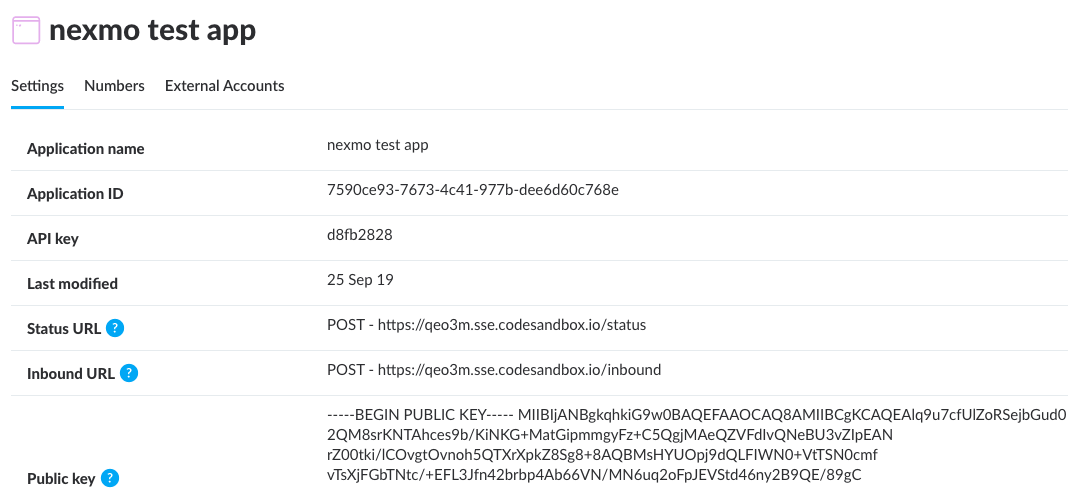
41
42As we can see in the screenshot above, we have successfully created the Nexmo app with all the required configurations. Now, we create the server in codesandbox which handles the verification messages API with the key that we generated.
43
44### Creating a Server
45
46For verification purposes, we need to create a server that handles the sending and checking of the OTP code. In this tutorial, we are going to demonstrate the implementation of the server by using codesandbox.
47
48First, we need to go to [codesandbox](https://codesandbox.io/)which is an online editor or IDE for coding and creating demos. Here, we need to login to the codesandbox account using our GitHub account. Then, we need to go to our dashboard and create a sandbox by clicking on ‘Create Sandbox’ which opens up a dialog as shown in the screenshot below:
49
50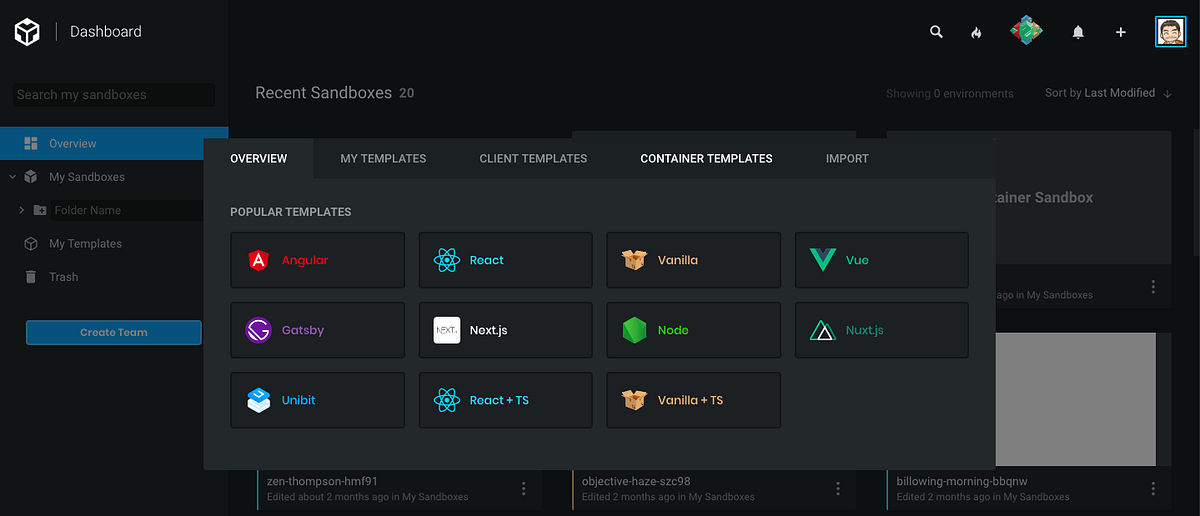
51
52From the dialog shown in the above screenshot, choose ‘Node’ as configuration. Then, it will load the template for Node.js server with all the files already configured as shown in the editor screenshot below:
53
54
55
56### Setting up Dependencies
57
58Now, we can see that there is a ‘Dependencies’ dropdown option on the left-hand side menu. It has a option to add the required dependencies to our Node project. So, we need to click on ‘Add Dependency’ button in the Dependencies dropdown which will open up a dialog with a number of dependencies list as shown in the screenshot below:
59
60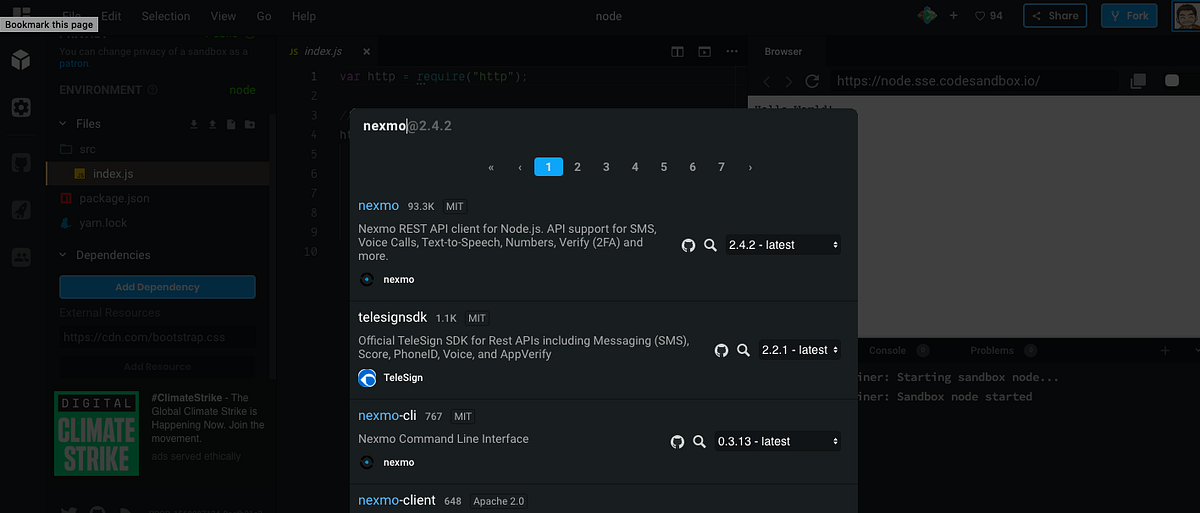
61
62On the dependences dialog shown above, there is an input field at the top to search for the required dependencies. So, we just need to type the name of the dependency that is required, which will appear in the list below the input and then click on the dependency to install them into our project. The list of packages or dependencies to search and install are given in the screenshot below:
63
64
65
66_Remember to install all the packages shown in the above screenshot._
67
68Next, we need to add the private key that we generated in our Nexmo app and downloaded to our local directory as `jwtRS256.key`into our Node project as shown in the screenshot below:
69
70
71
72To add the key file, we just need to click on the ‘file’ icon option in the ‘src’ file header options, navigate to the directory where we downloaded the key and then, double-click on the key file to add.
73
74Now, its time to do some coding.
75
76### Imports and Configurations
77
78First, we are going to import and initialize all the dependencies as shown in the code snippet below:
79
80```javascript
81const express = require("express");
82var bodyParser = require("body-parser");
83const app = express();
84const Nexmo = require("nexmo");
85const cors = require("cors");
86const path = require("path");
87```
88
89[Read More...](https://kriss.io/how-to-use-nexmo-verify-api-and-message-api-in-react-native/)
90
91####
92
93The post [How to use Nexmo verify API and Message API in React native](https://kriss.io/how-to-use-nexmo-verify-api-and-message-api-in-react-native/) appeared first on [Kriss](https://kriss.io).
94
95## Disclosure
96This post includes affiliate links; I may receive compensation if you purchase
97products or services from different links provided in this article.